Sign in, reset a password and sign out
Get back into the correct workspace without creating a second account.
Website → Sign in
Before you beginUse the same email you used to register, or the employee email your admin added.
Follow the steps
- 01
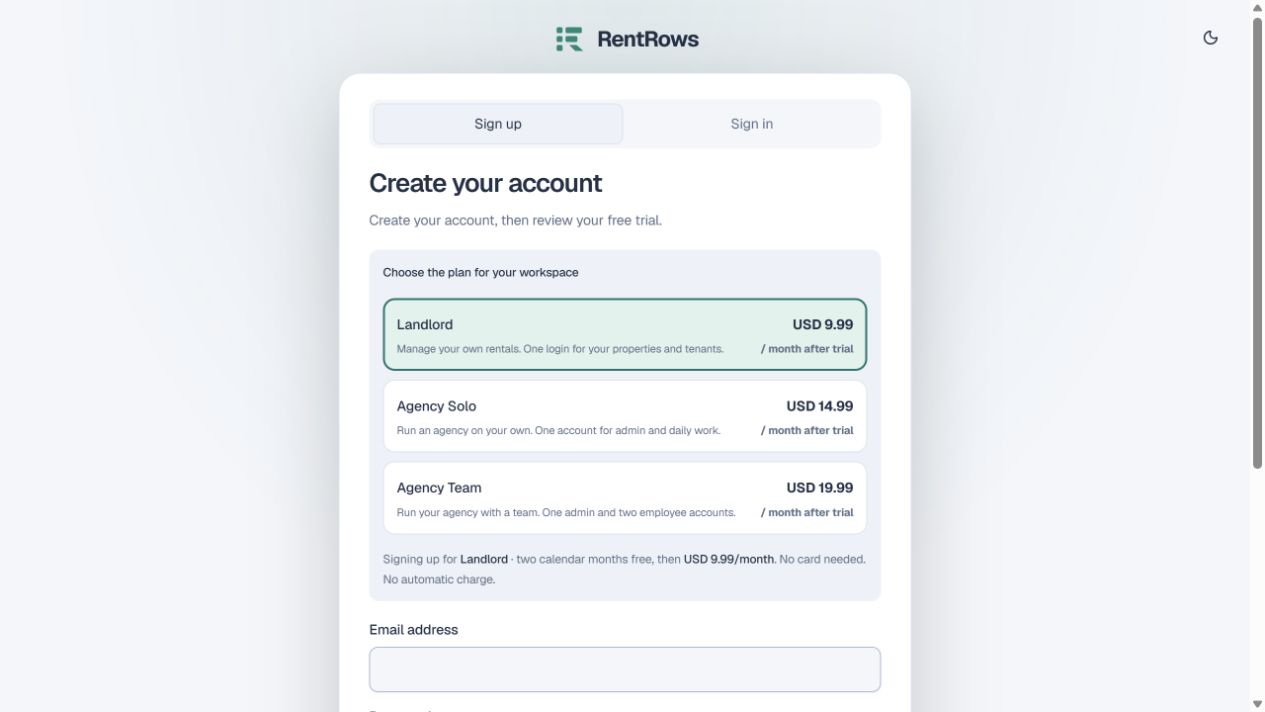
Select Sign in and enter your email and password. Employees use this same page; RentRows opens their assigned workspace.
- 02
If you forgot the password, select the password-reset option and enter your email. Open the reset email on the device where you want to finish.
- 03
Choose a new password only after the app opens the reset screen. Expired links should be replaced with a new reset request.
- 04
If a link opens the wrong screen, return to Sign in. Do not register a duplicate account to recover an existing workspace.
- 05
Use Sign out on a shared device when finished.
Check the result
You return to your own workspace with your existing records.
Keep going
Still need help?
Tell support which screen you are on, what you expected and what happened. Include a bill or receipt number where useful. Never send passwords, payment credentials or email confirmation links.
Contact support →Open your workspace →