Connect an approved M-Pesa Paybill
Understand setup, the one-time fee and live activation.
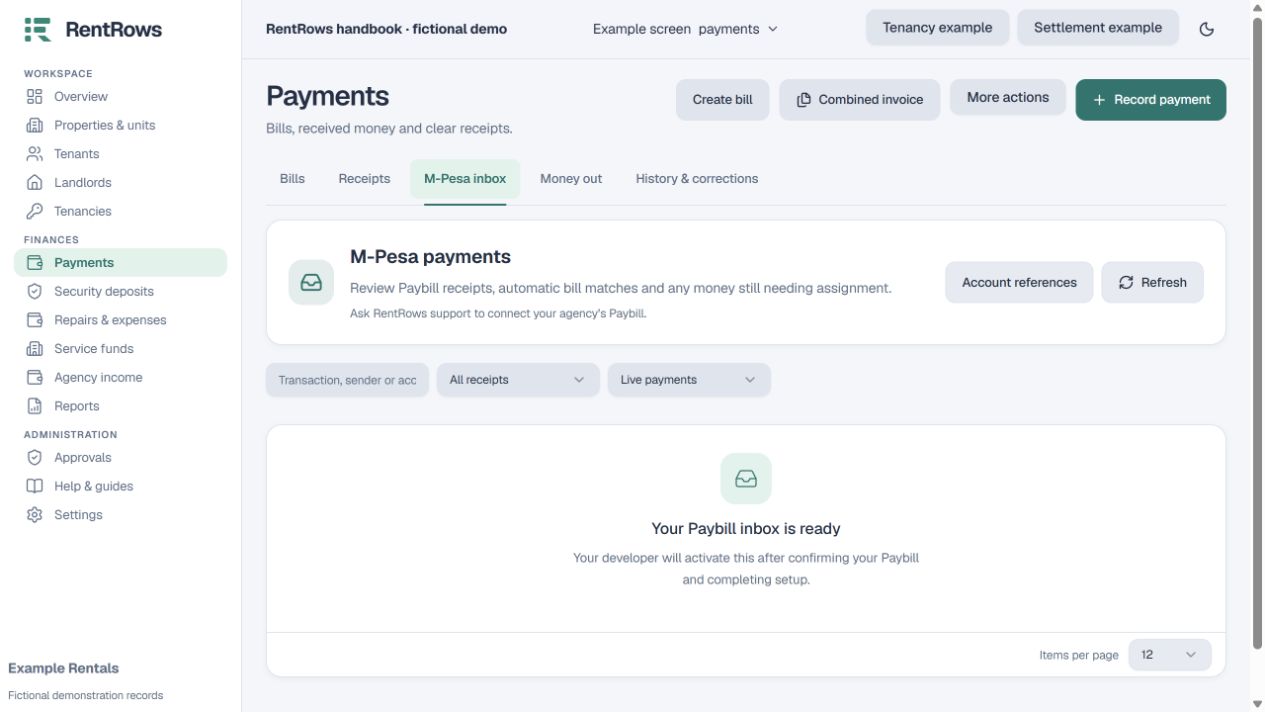
Payments → M-Pesa inbox / Contact support
Before you beginThe workspace must control the Paybill or have approved access from its operator.
Follow the steps
- 01
Contact support to request Paybill setup. USD 9.99 is charged once per workspace, not per payment and not monthly.
- 02
The Paybill owner supplies approved Daraja connection details through the agreed secure setup process. Do not send keys through ordinary email or chat.
- 03
The developer checks authorisation and existing integrations, tests credentials and registers payment notifications. A sandbox test is not live activation.
- 04
Production needs an approved live Paybill, a verified real incoming payment and a paid or explicitly waived setup fee.
- 05
After activation, use the M-Pesa inbox to review receipts. Optional bill-number automation must be enabled for that specific connection.
Check the result
An authorised active connection can receive payments into your own Paybill and retain a receipt in RentRows.
Keep going
Still need help?
Tell support which screen you are on, what you expected and what happened. Include a bill or receipt number where useful. Never send passwords, payment credentials or email confirmation links.
Contact support →Open your workspace →