Review, assign and recover M-Pesa receipts
Handle unmatched references, split payments and corrections.
Payments → M-Pesa inbox
Before you beginCompare the real statement and receipt details, especially when a payment is unverified.
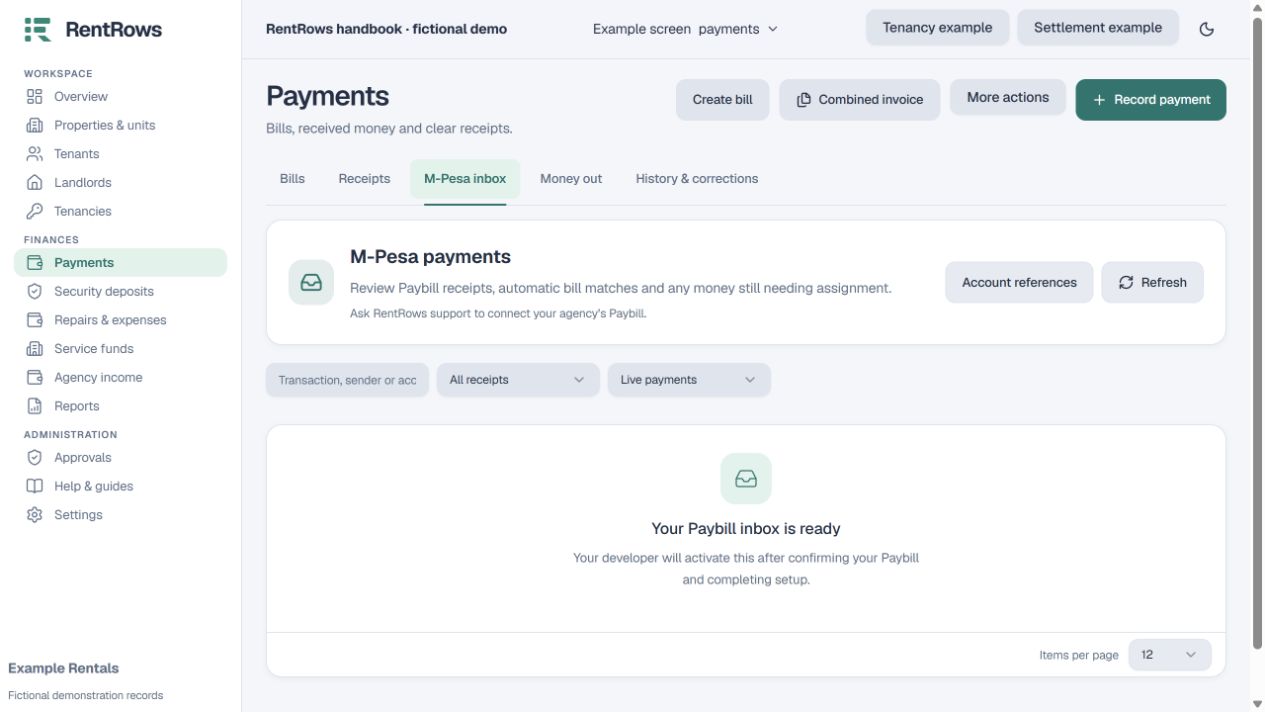
Follow the steps
- 01
Choose Live or Sandbox and use the status/search filters. Sandbox receipts never count as real rental income.
- 02
Open a receipt and check transaction reference, amount, date and account reference. Suggested people are a starting point, not proof.
- 03
Select the intended tenant or owner and the exact bills. Enter each portion; keep any unexplained remainder unassigned.
- 04
For an unverified live receipt, check it against the real statement before confirming manual assignment. Do not also enter the same transaction in Record payment.
- 05
If recovery is enabled, use the recovery action to look for missed provider transactions. Repeated callbacks/recovery should reuse the existing receipt.
- 06
For an incorrect allocation, correct the whole receipt with a reason. Protected reassignment may require the workspace admin.
Check the result
The inbox shows what is assigned, partly assigned or still needs investigation.
Keep going
Still need help?
Tell support which screen you are on, what you expected and what happened. Include a bill or receipt number where useful. Never send passwords, payment credentials or email confirmation links.
Contact support →Open your workspace →