Manage your password and personal sign-in
Keep personal account controls separate from workspace contact details.
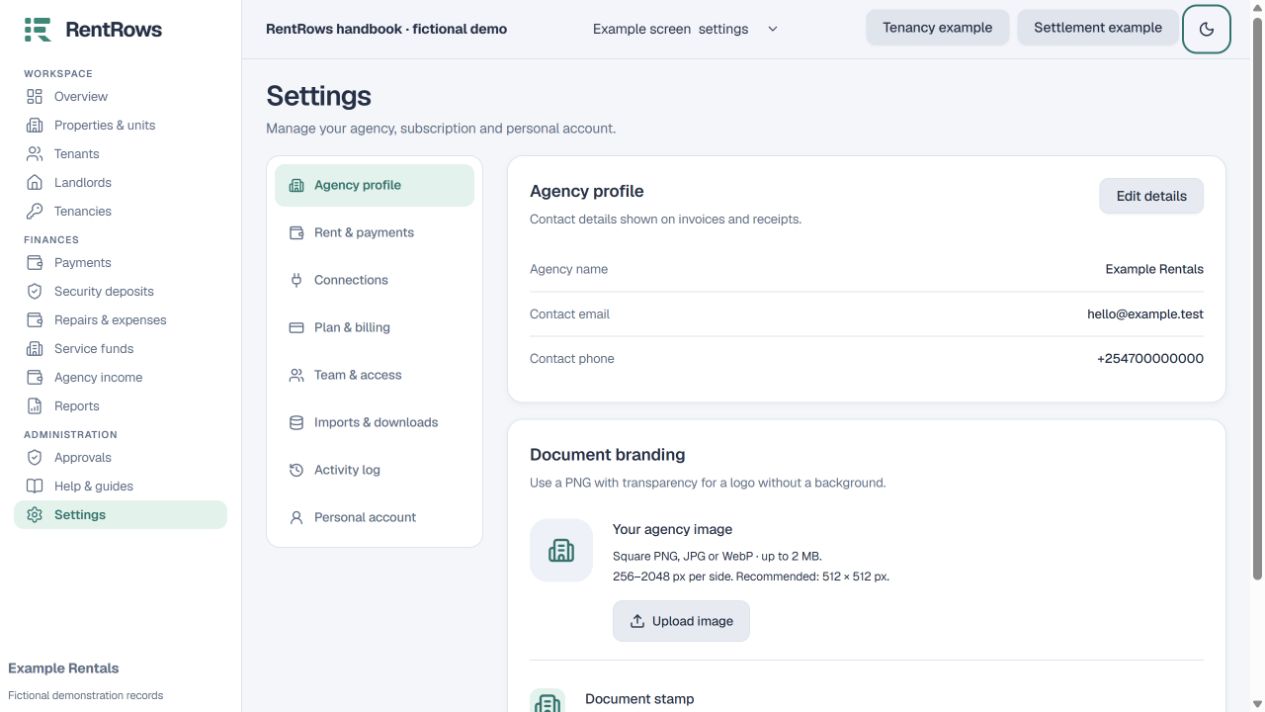
Settings → Personal account
Before you beginUse your own sign-in. Do not share the owner’s account with employees.
Follow the steps
- 01
Open Personal account in Settings to find the supported password and sign-in controls.
- 02
Choose a strong new password through the password-change flow. For a forgotten password, use the reset process from Sign in.
- 03
Check whether you are editing your personal sign-in or the workspace’s public contact email. Changing a contact address does not change the identity used to log in.
- 04
Give each employee a distinct authentication email. Ask support for an account identity change that is not available in your account controls.
- 05
Expect to sign in again after the app’s inactivity timeout. Sign out when using a shared device; do not send passwords or reset links to support.
Check the result
You retain access to the same records under your own account identity.
Keep going
Still need help?
Tell support which screen you are on, what you expected and what happened. Include a bill or receipt number where useful. Never send passwords, payment credentials or email confirmation links.
Contact support →Open your workspace →