Request an M-Pesa payment from a bill
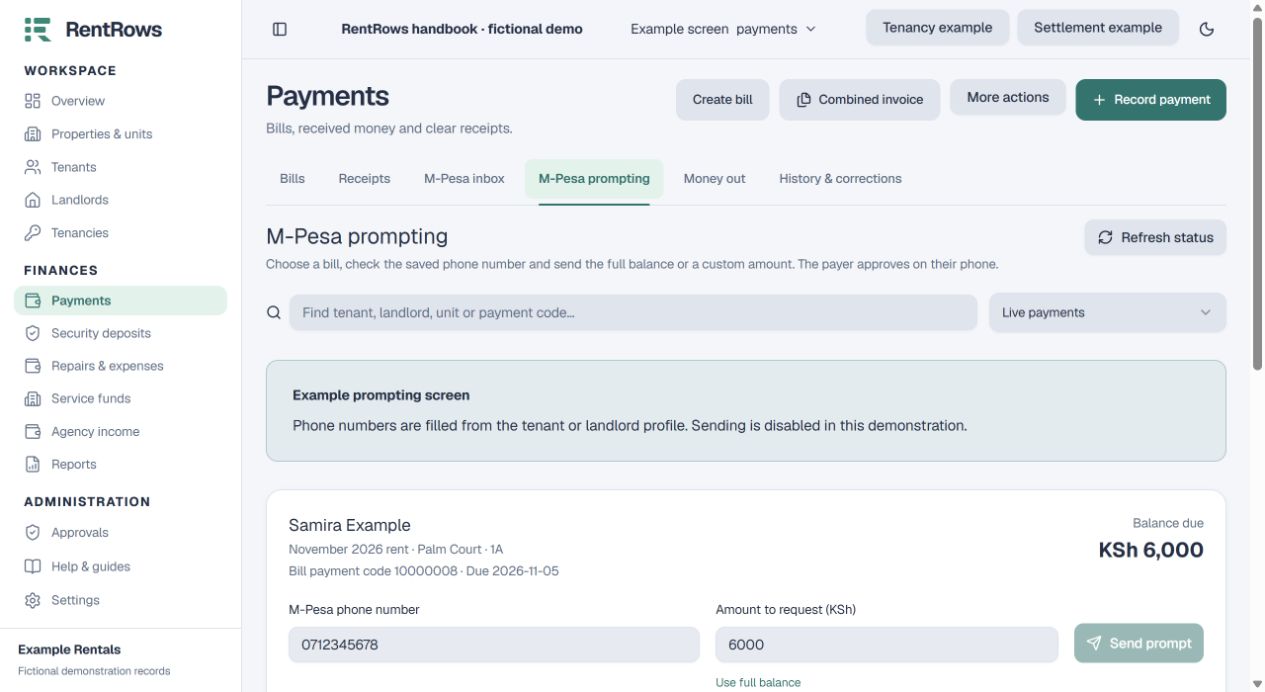
Send a payment request to the saved phone number, for the full balance or a smaller amount.
Payments → M-Pesa prompting
Before you beginSupport must activate M-Pesa Express on your own approved Paybill. Create the bill and save the payer’s phone number first.
Follow the steps
- 01
Choose Live payments for real collection. Sandbox testing is separate and never posts money to your live rental records.
- 02
Find the tenant or landlord, property, unit or eight-digit bill payment code. Check the bill and remaining balance.
- 03
Check the M-Pesa phone number filled from the person’s profile. You can change it for this request without changing their saved contact details.
- 04
Leave the amount at the whole-shilling balance, select Use full balance, or enter a smaller whole-shilling amount. You cannot request more than is still due.
- 05
Select Send prompt once. The payer checks the request on their phone and enters their own M-Pesa PIN. Never ask them to share it.
- 06
Wait for the status to update. Use Check payment if the result is delayed. An uncertain or pending result must be checked before another request is sent.
- 07
After independent payment verification, check the updated bill and receipt. A cancelled or failed request is not a payment. Review exceptions in the M-Pesa inbox.
Check the result
A verified payment is connected to the exact bill and follows the existing rent, deposit or service accounting rules.
Keep going
Still need help?
Tell support which screen you are on, what you expected and what happened. Include a bill or receipt number where useful. Never send passwords, payment credentials or email confirmation links.
Contact support →Open your workspace →